
GUIDELINES AND TUTORIALS
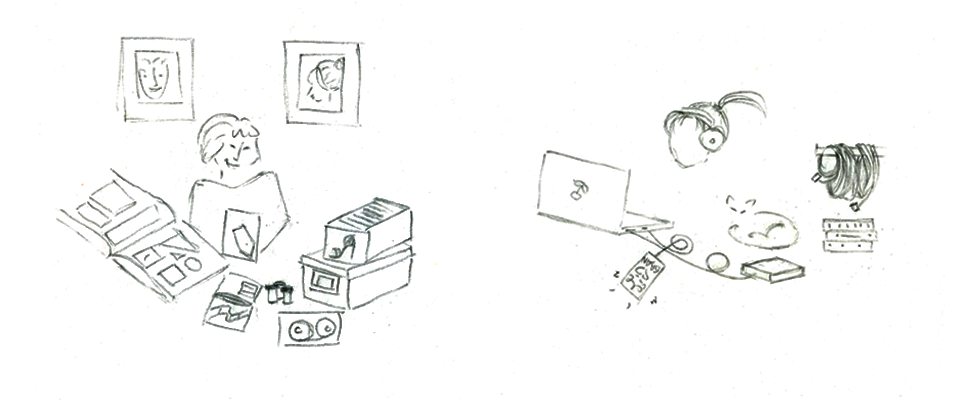
PERSONAL ACCOUNT
Having a Personal account is free. Once you have one, you can:
-
- store and
- accept invitations to join existing Families and Organizations, and even become a Historian
-
- Families you're a member of
- the Glass Files Community (other people with accounts)
- the World (the general public, meaning anyone who visits https://www.theglassfiles.com)
- view your
- new media items shared by your family members
- new and departing family members
- who's sharing your items with the Community and the World
- collaborate with Family members to identify "who's in that photo"
You also automatically join and become a Historian of the Human Family.
FAMILY ACCOUNT
When you're ready to start your own Family, you'll need to pay a monthly fee or a one-time-for-eternity fee to maintain your Family account.
The fee guarantees that you and your family members will never have to look at ads while you enjoy the illustrated history of your family.
The earlier you
Creating a Family makes you the Family Host. The Family Host can:
- invite members to the Family
- manage all the media items that have been shared with the Family
- modify the sharing settings of all media items shared with the Family
- designate Family members to be Family Historians, who in turn are able to invite members and manage Family items
- remove members from the Family (if they're really misbehaving!)
- change the Family profile picture
ORGANIZATION ACCOUNT
If you run an institution, a school, a classroom, or any company of many members, then what you need is an Organization account.
An Organization has all the features of a Family but in addition, allows you to sponsor as many families as you want. You pay a monthly fee for the Organization, and you also cover the monthly fees for any Family you sponsor.
A great example is a school that sponsors student families, or a historical society sponsoring families for its members. It's a way of developing a private and non-intrusive online community sharing stories.
The earlier you
Note that a sponsored Family can always decide to begin paying their own monthly fee by entering a payment method.
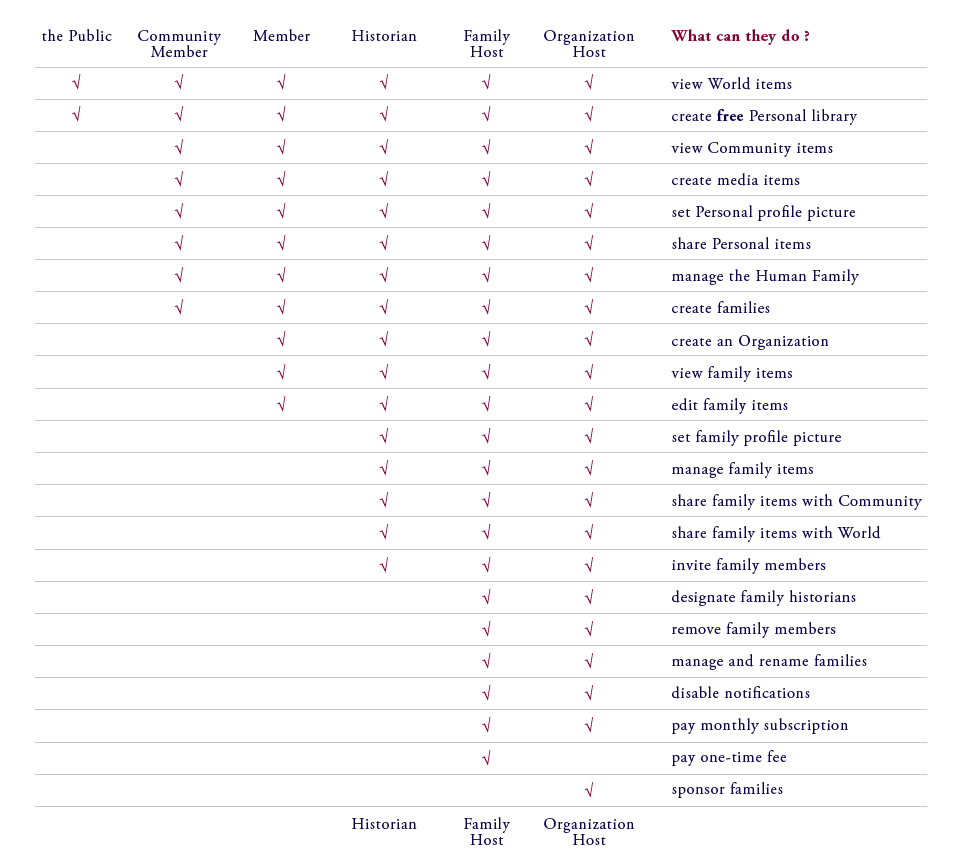
The table below summarizes the powers that each person has when visiting The Glass Files:
PRIVACY CONTROL
All the media items you upload to your Personal library are private by default.
If you share an item with a group, that item can be viewed and edited by all members of that group, until you un-share the item.
The primary way to change sharing settings is to access the '
- clicking on the World picture shows you all the items you've shared with the World
- clicking on the Community picture shows you all the items you've shared with the Community
- clicking on a Family or Organization picture shows you all the items that all your family members have shared with your Family or Organization
- clicking on the Personal picture shows you all the media items that you've created
Note that the Family/Organization Host and Family/Organization Historians of that group have the ability to share your item with the Community and the World.
In all cases, you will be notified that your item has been shared to a wider audience, and you will always be able to remove an item from any group, if you decide you want to.
We want you to share your items with whoever you want, because that's the best method for weaving your Personal and Family stories into the fabric of History.
At the same time, one of the main reasons we built The Glass Files is for people to have full control over the privacy level of each and every single one of their items.
Share responsibly!
CREATING, TAGGING AND DELETING MEDIA ITEMS
CREATING
When you Create a new media item, the short description is the only information required for you to complete the upload.
We invite you to fill in the rest of the information in the moment or at a later date, including the story of the item, when you are spending quality time with your Grandma for instance!
Once you click 'Save details', you'll have the option to share the item with your Families, Organizations, the Community, the World, or all of them at the same time.
Remember to always click 'Save details' and 'Save sharings' to save your updates.
TAGGING
You can associate tags with a media item you're creating.
Tags connect your story to History by creating links with other people’s media items. Tags also help you organize your Personal and Family libraries.
The Glass Files has a pre-set database of tags, and you can create new tags pertaining to a historical place or event, or specific to your Personal and Family items.
Tags are standalone words and don't require a hashtag.
All tags are moderated by The Glass Files Historian team, so that all stories can be more easily connected to History as a whole.
DELETING
In order to permanently delete an item, you must first un-share the item from all Families, Organizations, the Community, and the World.
Once you have un-shared the item from all groups, a 'Delete' button will appear below the item in the 'Manage Items' section.
TIPS AND TOOLS FOR DIGITIZING MEDIA ITEMS
Files sizes and file types
- file types you can upload to The Glass Files are:
.jpg .png .gif .pdf
- for best results, use an image that is at least 720 pixels wide for horizontal images, or 480 pixels tall for vertical images
- the file size cannot exceed 8 MB
A list of good scanning apps on your phone or tablet
- on Android devices
- Adobe Scan - free
- PhotoScan by Google - free
- Google Drive - free, but requires Google account
- on Apple iOS devices
- Adobe Scan - free
- PhotoScan by Google - free
- Genius Scan - free with ads
- Fast Scanner - free with ads
Using a scanner for long-term media preservation
- if you have a printer at home, see if it has a built-in scanner
- use a white sheet of paper as a background to increase the clarity of the image
- apply light pressure if you are scanning a book, in order to minimize light coming in
- resolution:
- 72dpi (dots per inch) is best for displaying images on the internet
- 300dpi is best for printing but will yield a larger file
- the higher the resolution, the larger the file size, so think about how important what you are capturing is, and how you might use it in the future
- for long-term archiving, we recommend scanning your photo as a .jpg, and setting the resolution to 300dpi
A list of good flatbed scanners
Dacuda PocketScan Wireless Scanner
- portable, light, and easy-to-use...
- this is probably what super spies carry on them!
Epson DS-510
- we love this one because you can feed documents of various sizes into the feeder, and it scans documents at 26 pages per minute
- it’s also useful for legal size documents that don't fit in a flatbed scanner
Epson Perfection V800
- this one is a bit costly, but scans negatives, slides, and is our go-to machine for archival scanning :)
We’d love to hear what some of your favorite tools are, so email us your suggestions at customerservice@theglassfiles.com
Stay tuned for more guidelines and tutorials!